
How to Search for and Download Footage from Hikvision
If you do not have the Hikvision application installed on your PC or phone please set up an appointment with the IT Tech to get them set up.
PC Instructions
-
Select the iVMS-4200 icon on the desktop.

-
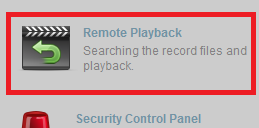
On the control panel choose Remote Playback.
-
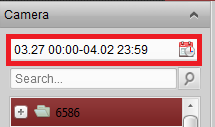
Click on the calendar Icon and select the date and time.
-
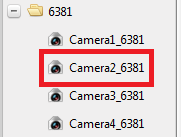
Select the store the store. (EX: 6381)

-
Select the camera or cameras to be viewed. (EX: Camera 2)
-
If multiple cameras are viewed, select that the synchronization button.
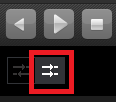
- Once selected the camera or cameras time will sync.

Hikvision Footage Search Instructions on the Phone App
- Open the Hikvision app on your phone.
-
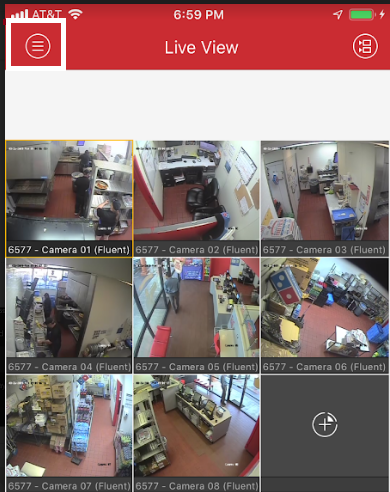
Open the Menu using the icon at the top left of the screen.
-
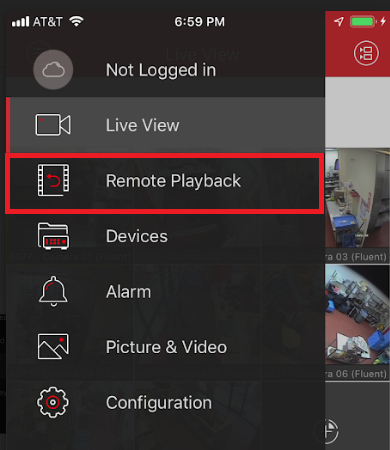
Choose Remote Playback in the menu.
-
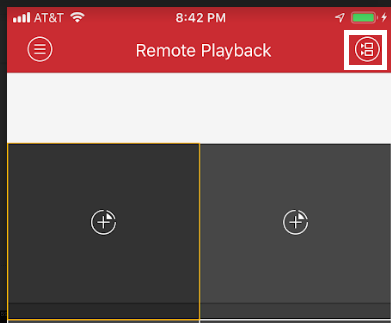
Open the Camera List using the icon in the top right of your screen.
-
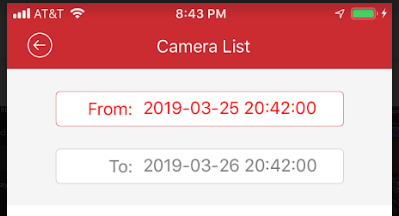
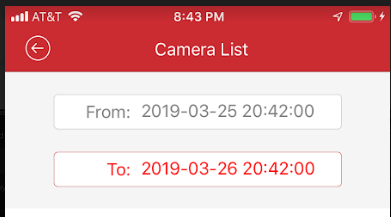
Choose the starting time in the box at the top of the screen.
-
Choose the ending time in the box right below the starting time.
-
Choose the store to watch the footage. Only four cameras can be selected at a time.
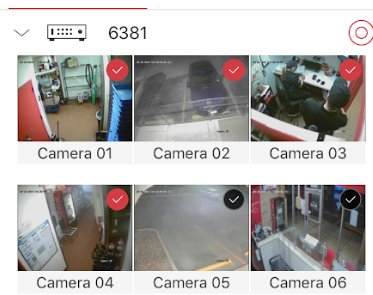
- Once the camera or cameras are chosen hit the Start Playback button at the bottom of your phone.
- The footage will start to play immediately from all of the cameras chosen.
Hikvision Download Instructions
-
Select the IVMS-4200 client Icon on your desktop.
-
Once logged in select Remote Playback.
-
Click on the calendar Icon and select the correct date time that you need to find.
-
Select the store the footage will come from. (EX: 6381)
-
Select the camera or cameras needed. (EX: Camera 2)
-
With multiple cameras chosen select the synchronization button.
-
Once the camera with the correct date and time is selected, stop the playback before the download button at the bottom is clicked.

-
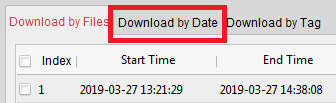
Choose Download by Date, this is the middle tab of the new window.
-
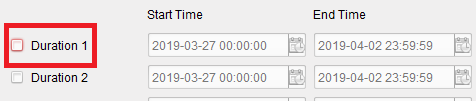
Check the first box labeled Duration 1.
-
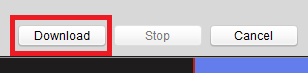
Click the Download button at the bottom of the page.
-
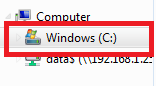
When completed check your C: Drive to make sure the download was saved.
-
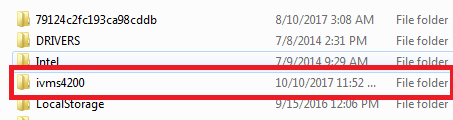
Choose the ivms4200 folder.
-
Open the Video Folder.

-
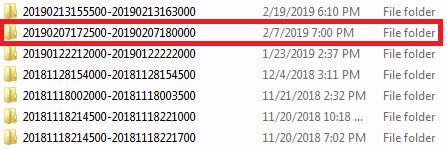
Find the new download by the date that you download the file. Should be today's date
-
To convert the file to MP4, open the VSPlayer icon on your desktop.

-
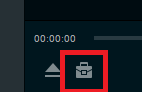
Select the Toolbox icon at the bottom of the open window, select the Convert option.
-
Select the Add symbol at the top of the screen to add the video. Use steps 11 thru 13 to find the video.
-
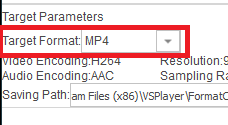
On each file added change the Target Format at the bottom of the screen to MP4.
-
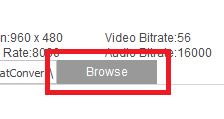
Click the Browse button to select where the file will be save. Make sure that it is a location that is easy to remember and find.
-
When all files have been added and the format and save location have been chosen click the Start button.
- Once the conversion process is done find the files and confirm that they play.


