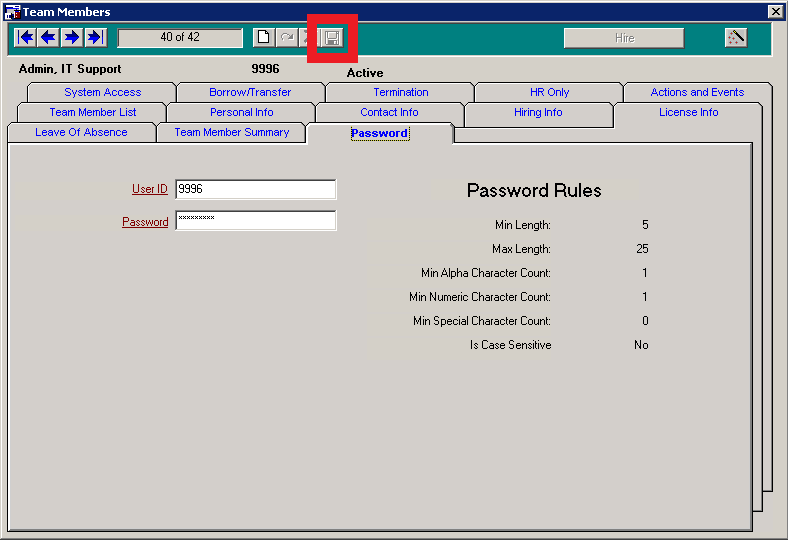
How to Change a TM Password in Pulse
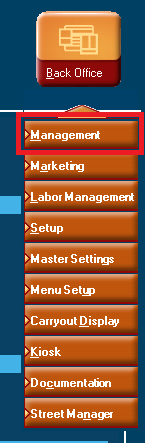
- Log in to Back Office > Management
-
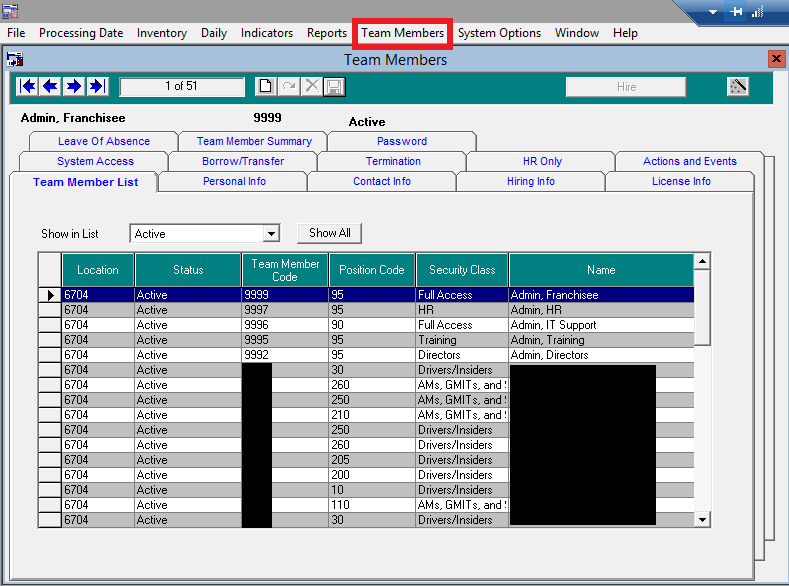
Select the Team Members tab at the very top and a Team Members window should appear.
-
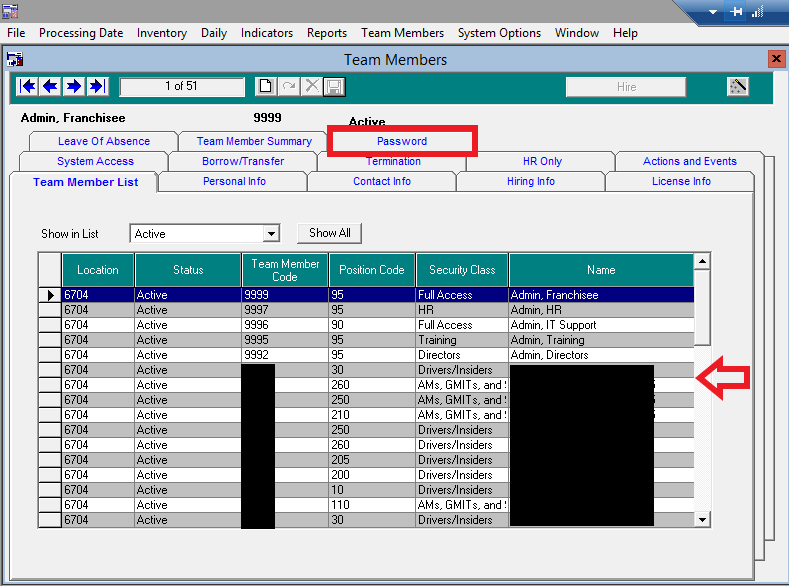
Select the team member who's password needs to be changed from the list and click the Password tab.
-
Type in the new password and click the save button.
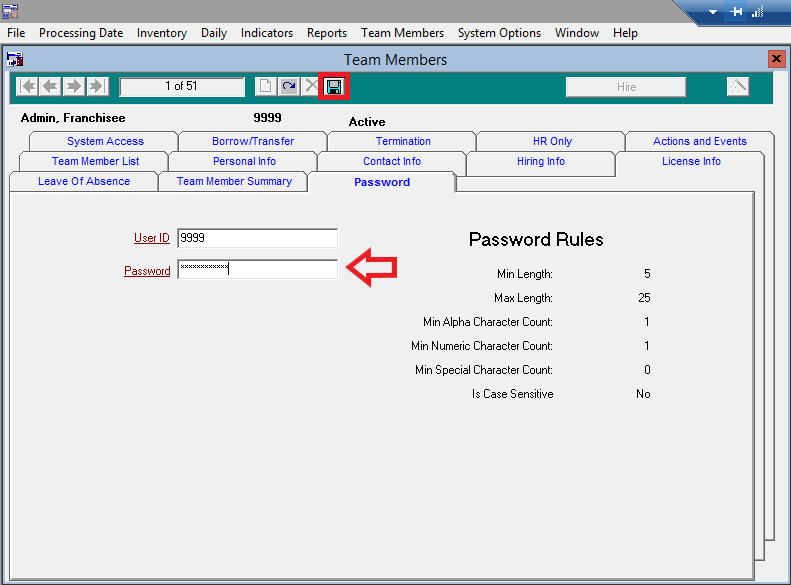
- If the save button wont click down and save, follow these steps.
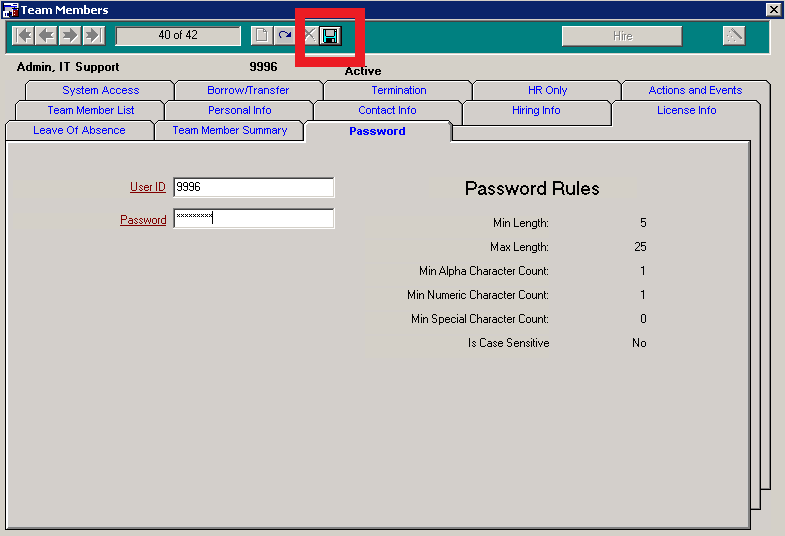
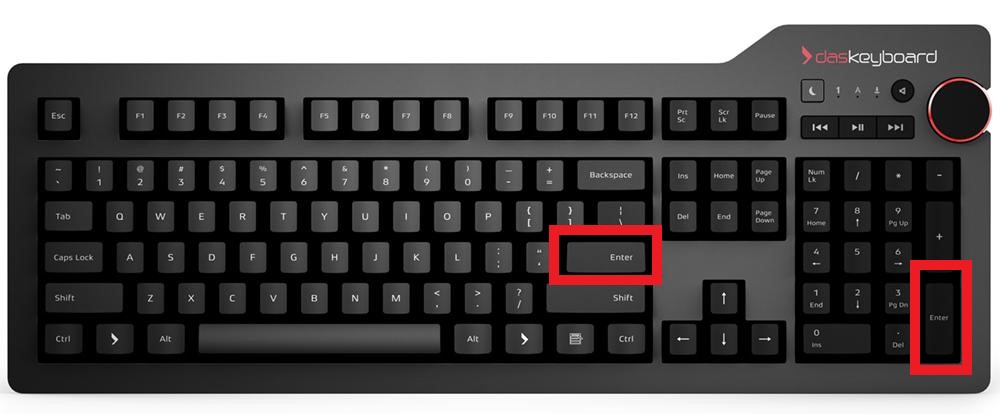
- Press the enter key on the keyboard.
- The save button should gray out which indicates that the password or data was saved.