
How to View Hikvision Cameras Live
If you do not have the Hikvision cameras installed on your PC or on your phone please set up an appointment with you IT Tech to get them set up.
Follow these steps to view on the PC.
-
Use the iVMS-4200 Client icon on the desktop.

-
If this is first time using Hikvision then the page will open up on the control panel page.
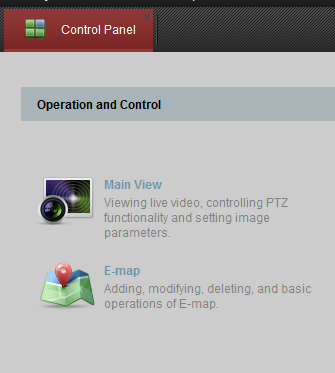
-
Select Main View icon on the top left of the Control Panel page.
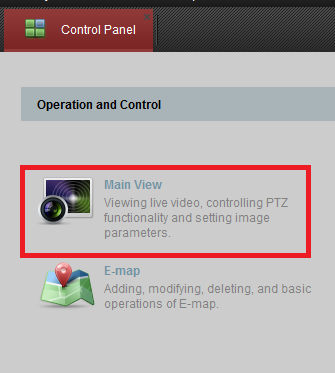
-
In the store selection menu double click on the store. (EX. 6586)
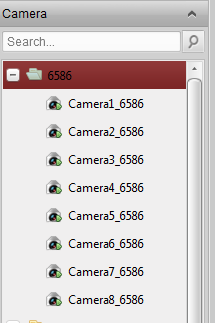
- To view a particular camera double click on the picture, to go back to multiple cameras double click again.

Follow these Steps to View on the Phone
- Select the iVMS-4500 app installed on your phone. The app will open up on the last store chosen when closed last.
-
To change stores hit the Menu button at the top left of the screen.
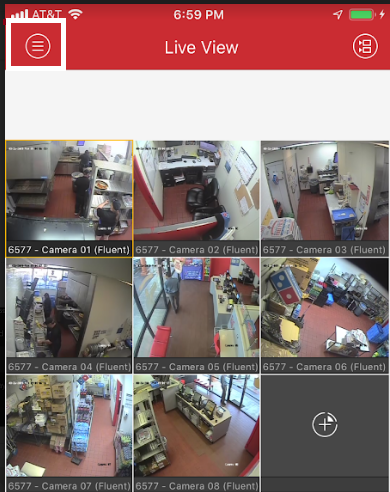
-
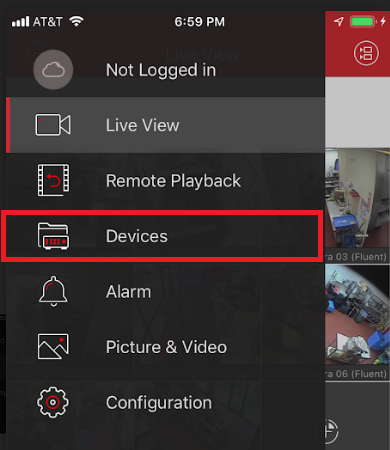
On the menu screen choose Devices.
-
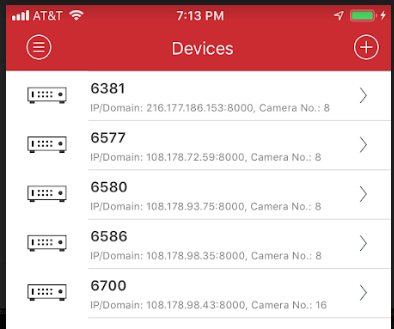
This will show all the stores in the app to choose from.
-
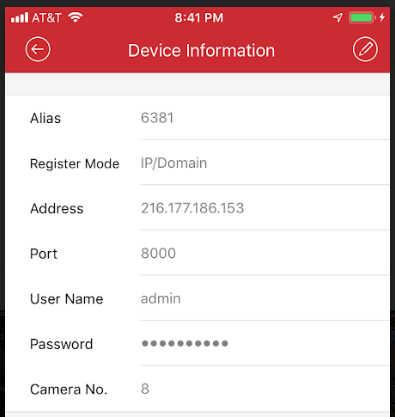
Select the store and it will go to the device information page.
-
Select the Start Live View button at the bottom of the page to begin viewing the cameras at that store.

